gCMOB on PC Guide: View Your CCTV Cameras on a Windows Computer

View gCMOB cameras on a Windows PC: official desktop software options, Android emulator route explained honestly, browser access where supported, and choosing the right method for your recorder.

Rated 4.5/5 · 204.5k

Introduction

A phone screen is fine for a quick check, but reviewing a day of footage or watching four cameras for an hour deserves a real monitor. Many gCMOB users therefore ask how to get the same cameras onto a Windows PC, and the honest answer is that the right route depends on your recorder, not on the app name.

This guide compares the three real options: the recorder maker's desktop software, the recorder's web interface, and running the Android app itself on PC, with the strengths and limits of each. The gCMOB Download for Android - CCTV Camera Monitoring App Guide page itself collects the download, the requirements and the FAQs in one place.
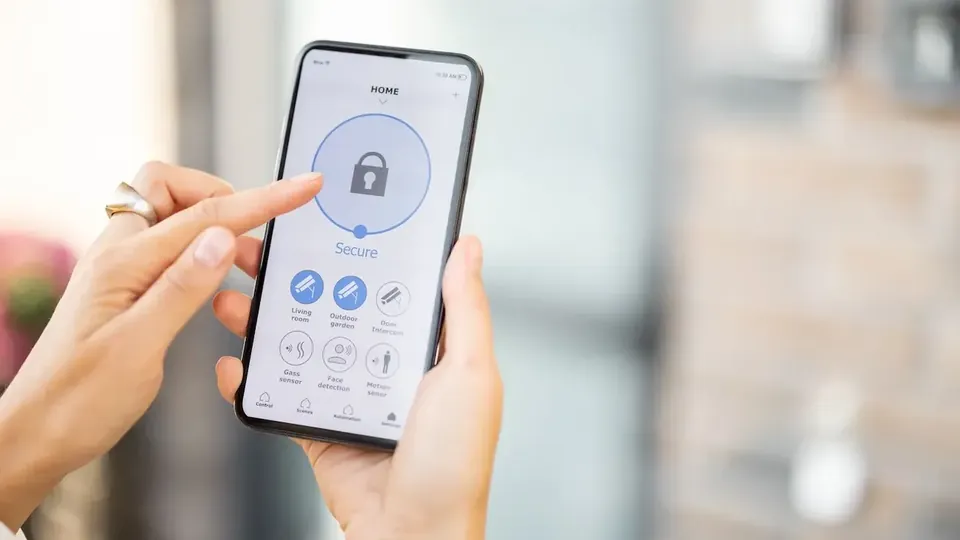
Option One: Desktop Software From the Camera Maker

CP Plus provides desktop client software for Windows designed to connect to the same DVRs, NVRs, and cameras that gCMOB serves on mobile. For regular PC monitoring, this is the recommended route: it is built for large screens, multi-channel grids, and long playback sessions.

You add devices with the same serial numbers, IP addresses, and accounts used on the phone, and the two clients coexist happily on one system:

  • Built for big-screen monitoring
  • Same device details as the mobile app
  • Better for long playback review
  • Multi-channel grids suit control desks
  • Free from the maker's support site

Option Two: The Recorder Web Interface

Most recorders also offer a web interface on the local network. From a PC browser on the same Wi-Fi or wired network, entering the recorder's IP address opens live view and playback without installing anything.

Browser support varies by recorder age and model, and some older units expect legacy browser components. Treat the web interface as a useful local tool rather than the main monitoring method:

  • No installation needed
  • Works on the local network
  • Useful for quick configuration checks
  • Support varies by recorder model
  • Best kept inside your own network

Option Three: Running the Android App on PC

Android emulators for Windows can install gCMOB itself, which helps when you need the exact mobile experience for training or testing. For daily security monitoring, however, an emulator adds a heavy extra layer that can struggle with multiple live video streams.

If you try this route, give the emulator generous RAM, use it for light checking rather than a permanent monitoring wall, and never install emulator bundles from unofficial download sites:

  • Replicates the exact mobile app
  • Useful for training and demos
  • Heavy for permanent multi-stream use
  • Needs generous PC resources
  • Download emulators only from official sites

Which Method Should You Choose?

For a shop desk or office that watches cameras daily, choose the desktop client. For occasional configuration and quick local checks, the web interface is enough. For training staff who will use phones in the field, the emulator shows them the real app.

All three can point at the same recorders at once, so choosing one does not lock you out of the others:

  • Daily monitoring: desktop client
  • Quick local checks: web interface
  • Staff training: emulator with the real app
  • Methods can be combined freely
  • Keep phone app as the away-from-desk tool

Setting Up the Desktop Client With Your Devices

Setup mirrors the mobile flow. Gather the same details you used in gCMOB before you begin and the PC side takes minutes.

  1. Download the client from the maker's official support pages.

  2. Install and create a local client account if prompted.

  3. Add each recorder by serial number or IP address.

  4. Enter the same device username and password as mobile.

  5. Name devices identically to gCMOB for consistency.

  6. Build your preferred multi-channel view and save it.

Security Notes for PC Viewing

A monitoring PC often stays logged in all day, which makes its own security part of your camera security. Lock the Windows account, keep the client updated, and avoid saving admin passwords on shared computers.

Download client software only from the camera maker's official site. Fake CCTV software bundles are a known malware trick aimed at exactly this search:

  • Lock the monitoring PC account
  • Update the client when prompted
  • No admin passwords on shared PCs
  • Official download sources only
  • Same strong passwords as mobile

Multi-Monitor and Video Wall Setups

Shops and warehouses sometimes grow into a permanent video wall: a PC driving two or more monitors with fixed grids. The desktop client handles this far better than a phone app ever will, with saved layouts per screen.

Build walls from sub streams for the wide awareness screens and reserve one main-stream position for whichever camera needs attention, switched as events demand:

  • Desktop client suits video walls
  • Sub streams for awareness grids
  • One main-stream focus position
  • Saved layouts per monitor
  • A wall is a workflow, not just hardware

Exporting Footage From the PC Client

The PC client is usually the most practical place to export longer segments, with bigger storage, a real keyboard for naming files, and no phone battery anxiety. Export in the recorder's native format when evidence matters, keeping any bundled player the export offers.

Name exports with date, time, and camera in the filename itself. Months later, filenames are the only metadata anyone reads:

  • PC suits long exports
  • Native format for evidence
  • Keep bundled players with exports
  • Filenames carry date, time, camera
  • Store exports in dated folders

Conclusion

Getting your gCMOB cameras onto a Windows PC is best done with the tools built for it: the maker's desktop client for daily monitoring, the recorder's web interface for local checks, and the Android app on an emulator only when the exact mobile view is the point.

Whichever route you choose, reuse the same device names and accounts as your phone setup, keep the software official and updated, and the big screen becomes a natural extension of the monitoring you already do in gCMOB. The related walkthrough in gCMOB Live View Guide for CP Plus Cameras picks up the neighbouring topic in full. The companion guide Is gCMOB Safe to Use for CCTV Monitoring? covers the neighbouring topic in the same step-by-step style.