gCMOB Beginner Checklist: Your First Week With a New Camera System

A first-week checklist for new gCMOB users: day-one setup checks, naming and favorites, alert tuning, playback practice, storage verification, and the habits that keep a new system trustworthy.

Rated 4.5/5 · 204.5k

Introduction

A new camera system feels finished the day the installer leaves, but the first week decides whether it becomes a tool you trust or a list of cameras you ignore. gCMOB beginners who work through a short checklist in that week end up with named channels, sane alerts, proven playback, and known storage limits, while everyone else discovers those gaps during their first real incident.

This checklist is organized by day-sized tasks, each small enough to actually do. The gCMOB Download for Android - CCTV Camera Monitoring App Guide page itself collects the download, the requirements and the FAQs in one place.
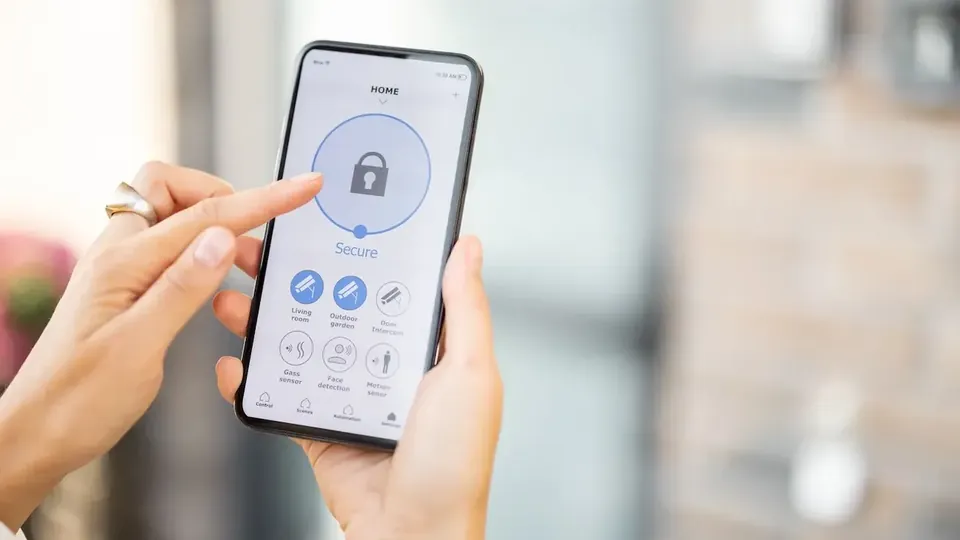
Day One: Passwords, Names, and a First Look at Every Camera

Change every default password today: recorder admin, any camera passwords, and confirm your own gCMOB sign-in is protected. Then open every channel once, rename devices and channels by location and view, and verify each camera's picture is framed where you expected.

A camera pointing at a wall corner or a tree is easiest to fix on day one, while the installer relationship is warm:

  • All default passwords changed
  • Every channel opened and checked
  • Devices and channels renamed clearly
  • Framing problems reported immediately
  • Admin details stored safely by the owner

Days Two and Three: Alerts Tuned to Real Life

Enable push alerts, then deliberately trigger them: walk the entrances, open the doors, and confirm each expected alert arrives with the right camera name. Then watch the false alerts for a full day and tighten motion zones or schedules for the channels that cry wolf.

The goal by day three is simple: every alert means something, and nothing important is silent:

  • Walk-test every alert
  • Alerts carry correct camera names
  • False-alert channels tuned down
  • Schedules match occupancy
  • Phone notification settings allow gCMOB

Day Four: Practice Playback Before You Need It

Pick a moment from yesterday, such as your own arrival home, and find it in playback. Practice moving along the timeline, switching streams for clarity, taking a snapshot, and recording a short clip.

Skills practiced calmly are available under stress. The first incident is the wrong classroom for playback basics:

  • Find a known moment in playback
  • Practice timeline navigation
  • Capture one snapshot and one clip
  • Confirm captured files open correctly
  • Note how far back playback reaches

Day Five: Storage and Health Reality Check

Open device health and confirm the drive or card status is normal. In playback, scroll back to the oldest day available to learn your real retention, and write that number down where the owner will find it.

Also confirm what happens on overwrite is understood by everyone who might need footage: old video disappears automatically, so important events must be exported promptly:

  • Drive or card status normal
  • Real retention days measured
  • Retention written down for reference
  • Overwrite behavior understood
  • Export process known before incidents

Days Six and Seven: People, Access, and Remote Viewing

Finish the week with people. Create individual accounts for family or staff who need access, remove any shared admin usage, and test remote viewing properly: phone on mobile data, away from the local Wi-Fi, opening each key camera.

A system that only works from the sofa is half installed. The away test is the real acceptance test:

  • Individual accounts created
  • No shared admin password in use
  • Remote view tested on mobile data
  • Key cameras open from outside
  • Leavers and temporary access planned for

The Habits That Keep It Working After Week One

Weekly: glance at every channel once and check for offline devices. Monthly: clean camera lenses, confirm retention still matches expectations, and review the account list. After any change, such as a new router or phone, retest remote viewing the same day.

Camera systems fail silently; these small rituals are how owners notice before the footage is needed:

  • Weekly all-channel glance
  • Monthly lens and retention checks
  • Account list reviewed monthly
  • Retest after router or phone changes
  • Small rituals prevent silent failures

Your First Month Maintenance Rhythm

After the checklist week, settle into rhythm: a weekly glance at every channel, a monthly lens clean and retention check, and a quarterly account and alert review. Put the monthly tasks on a calendar reminder now, while motivation exists.

Systems do not usually break loudly. They drift, and rhythm is how an owner notices drift while it is still a five-minute fix:

  • Weekly all-channel glance
  • Monthly lens and retention check
  • Quarterly account review
  • Calendar reminders set today
  • Drift is caught early by rhythm

Questions Worth Asking Your Installer

Before the installer relationship cools, get written answers to five things: the admin password location, the drive size and expected retention, how to export footage, the warranty contact, and what the P2P account email is.

These answers are the system's birth certificate. Every future troubleshooting session, including the ones in these guides, starts faster with them in hand:

  • Admin password location
  • Drive size and retention
  • Export procedure
  • Warranty contact
  • P2P account details

Conclusion

One deliberate week turns a new gCMOB installation into a system you understand: passwords owned, channels named, alerts proven by walk-tests, playback practiced, retention measured, access individualized, and remote viewing verified from genuinely outside.

None of it takes more than minutes a day, and all of it is dramatically harder to retrofit after an incident exposes the gaps. Start the checklist today, and let the first real event find a system that is ready. Readers moving on from here will find the neighbouring topic covered in full in How to Install gCMOB on Android: Step-by-Step Guide. Readers moving on from here will find the neighbouring topic covered in full in gCMOB Not Working? Common Problems and Fixes.